Seamless C-Zentrix Telephony Integration with Zoho

Turn Every Call into Actionable CRM Intelligence
Connect Zoho with C-Zentrix in minutes using Zoho PhoneBridge and empower your sales and support teams with click-to-call, automatic call logging, and real-time customer context, all from within Zoho.
No complex integrations. No custom development. Just faster conversations and better outcomes.
Why Integrate C-Zentrix call center software with Zoho?
Modern customer engagement demands more than just voice connectivity. With the C-Zentrix–Zoho PhoneBridge integration, your teams get:
- Click-to-Call from Zoho
- Automatic Call Logging & Activity Tracking
- Instant Customer Context for Every Call
- Reduced Manual Work for Agents
- Improved Sales & Support Productivity
Every inbound and outbound call is automatically linked to the right lead, contact, or deal - ensuring complete visibility across the customer journey.
Built for Fast, Hassle-Free Setup
The C-Zentrix Zoho PhoneBridge integration is designed to be admin-friendly and deployment-ready.
What You Need
- Zoho Admin access
- An active C-Zentrix account
- Telephony enabled in Zoho
That’s it. No plugins, no scripts, no downtime.
How to do the Zoho Phone bridge integration
Prerequisites Before You Start
Before beginning the installation, make sure the following conditions are met:
- You have Admin access to Zoho
- Your Zoho account is active and accessible
- C-Zentrix is your chosen telephony provider
- Telephony is enabled for the relevant campaigns in Zoho
⚠️If telephony is disabled for a campaign, Zoho will display the message “PhoneBridge is not enabled in Zoho.” This must be resolved before proceeding.
Step 1: Log in to Zoho
Start by logging in to your Zoho account using your admin credentials.
Admin access is mandatory to configure PhoneBridge and manage telephony integrations
- Log in to Zoho using Admin credentials
- Admin access is mandatory for PhoneBridge configuration
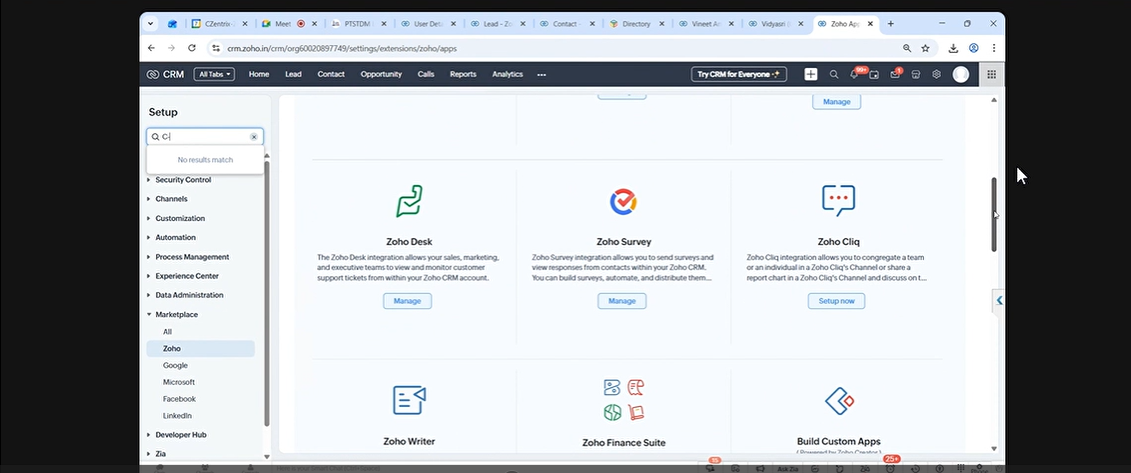
Step 2: Navigate to the Setup Page
From the Zoho home screen:
- Click the Setup (⚙️) icon in the top-right corner
- This opens the CRM configuration dashboard
This is where all telephony and channel-related configurations live
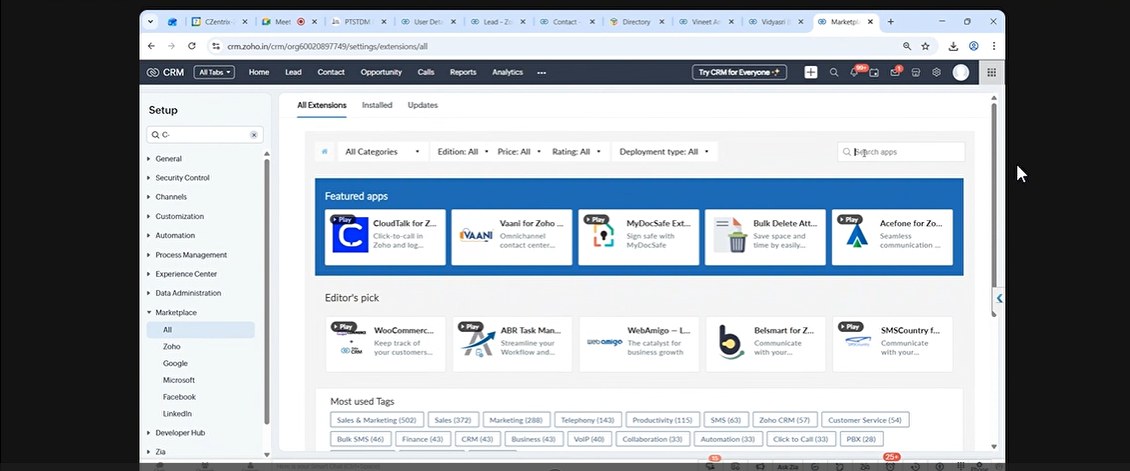
Step 3: Go to Channels → Telephony
Within Setup:
- Navigate to Channels
- Select Telephony
Here, Zoho displays the current PhoneBridge status and available telephony configurations
Step 4: Open Telephony Marketplace
Click View Configuration, then proceed to the Telephony Marketplace. This marketplace lists all supported telephony providers that can integrate with Zoho.
Search for C-Zentrix in the marketplace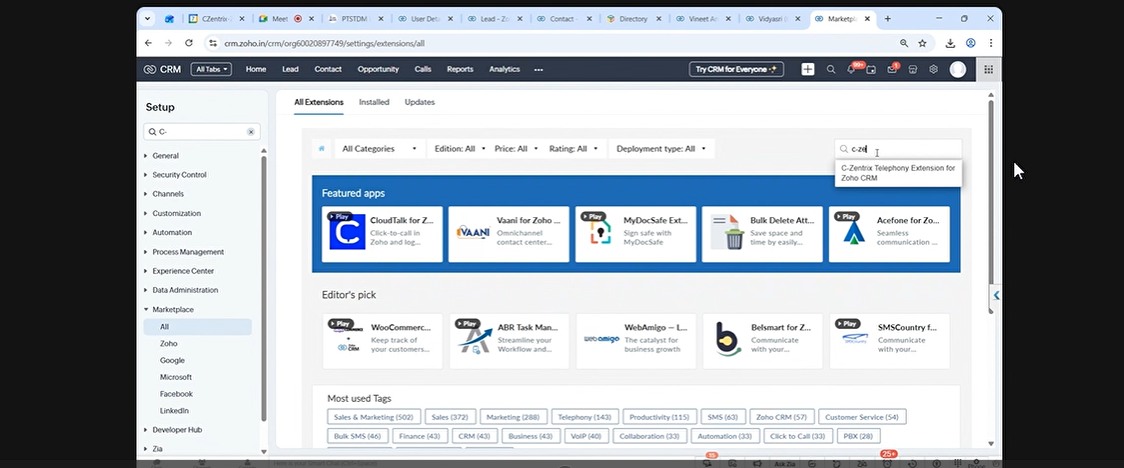
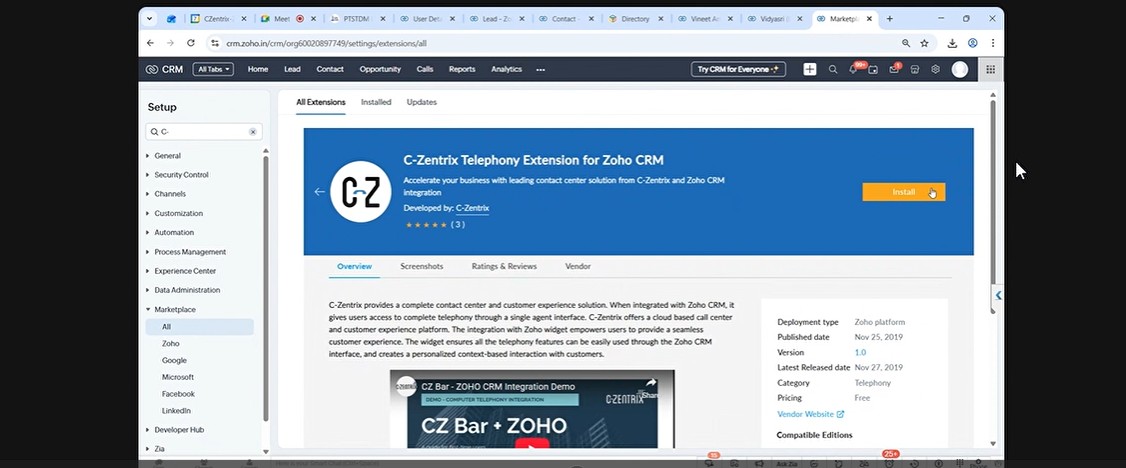
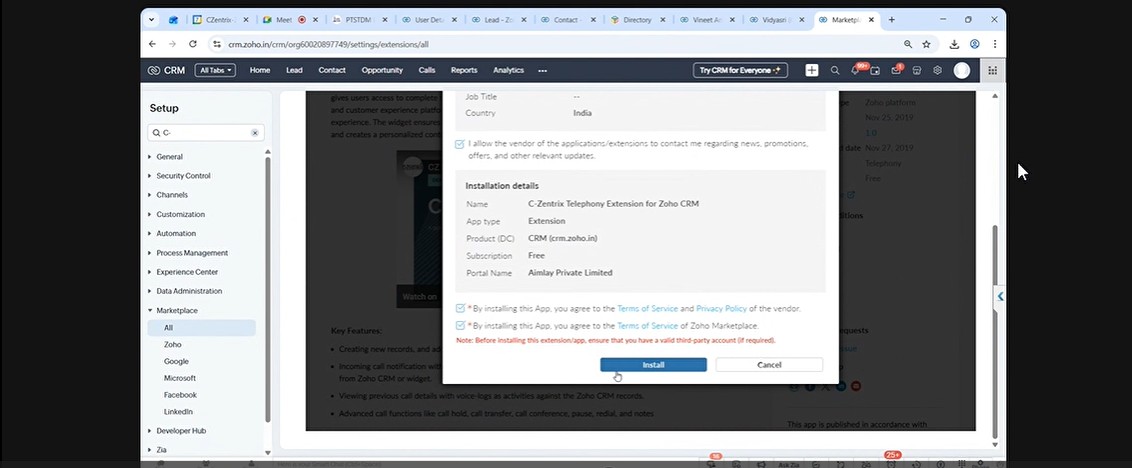
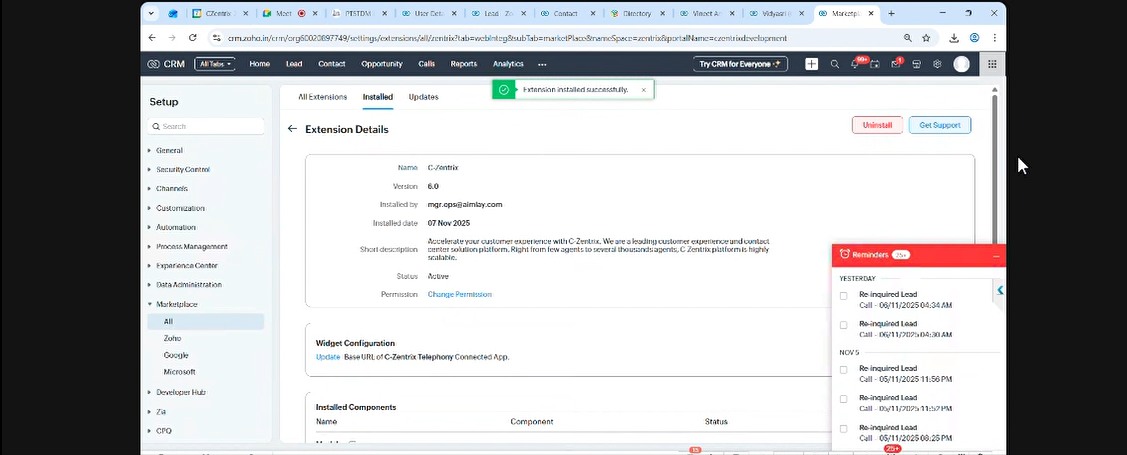
Step 5: Install the C-Zentrix Application
Once you locate C-Zentrix:
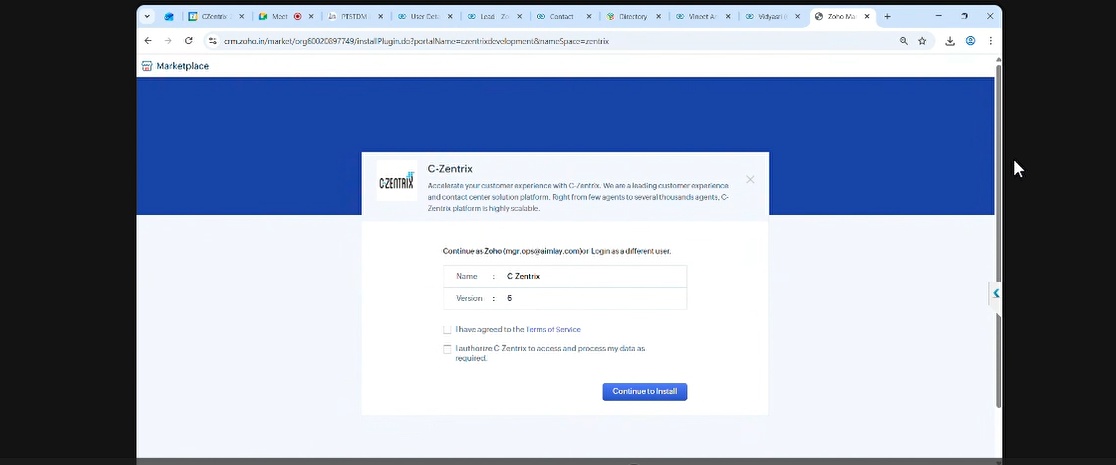
- Select the C-Zentrix application
- Click Install to begin the integration process
Zoho will now start setting up the PhoneBridge connector for C-Zentrix
Step 6: Select Users for Telephony Access
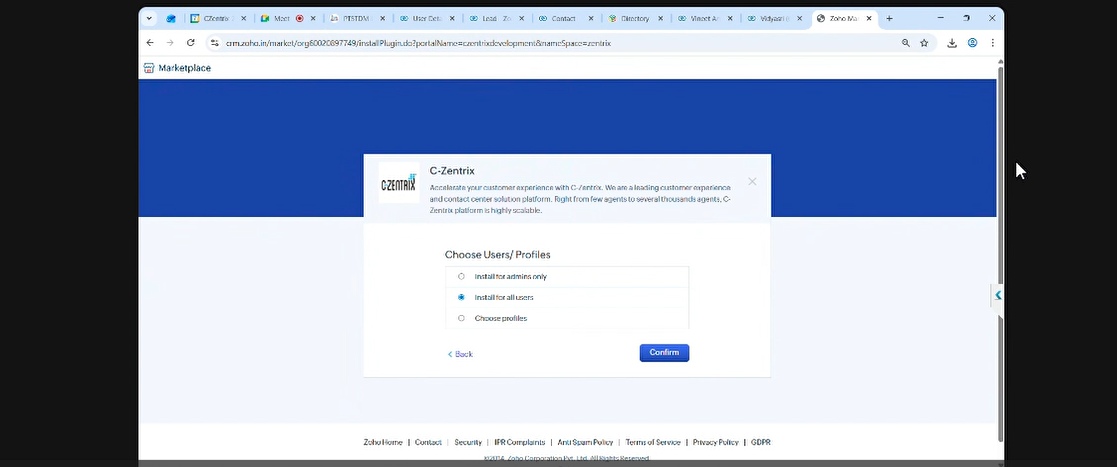
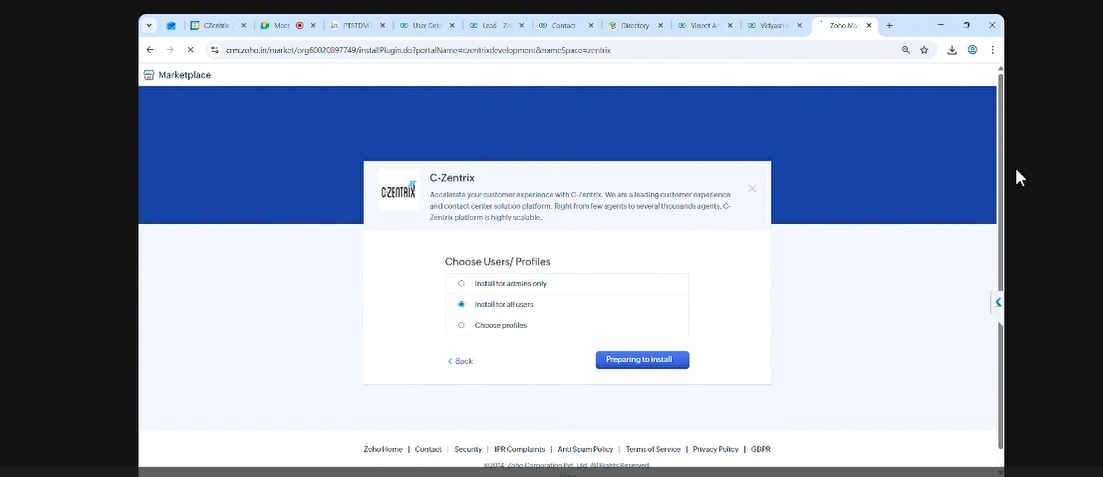
After installation:
- You’ll be prompted to select CRM users who require telephony access
- Choose the appropriate users and click Proceed
Step 7: Configure Base URL (Connected Apps)
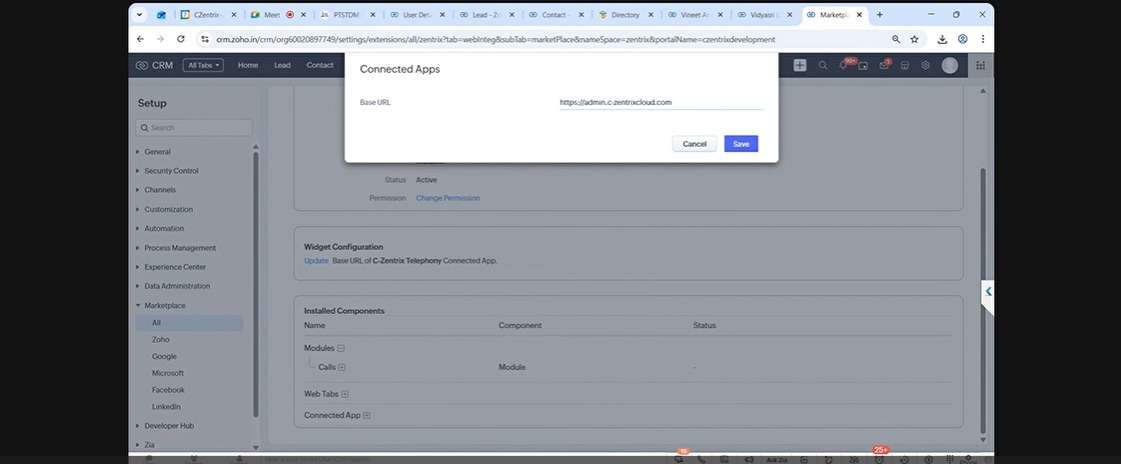
In the Connected Apps section, enter the Base URL.
For CZOBD server, use: https://czobd.c-zentrixcloud.com
Or
the specific server path provided by C-Zentrix team
This ensures correct communication between Zoho and C-Zentrix.
This step ensures that only authorized users can make and receive calls through PhoneBridge
Step 8: User Mapping
If CRM Users Not Visible
Initially, CRM users may not appear in the mapping list. This is expected.
Resolution Steps
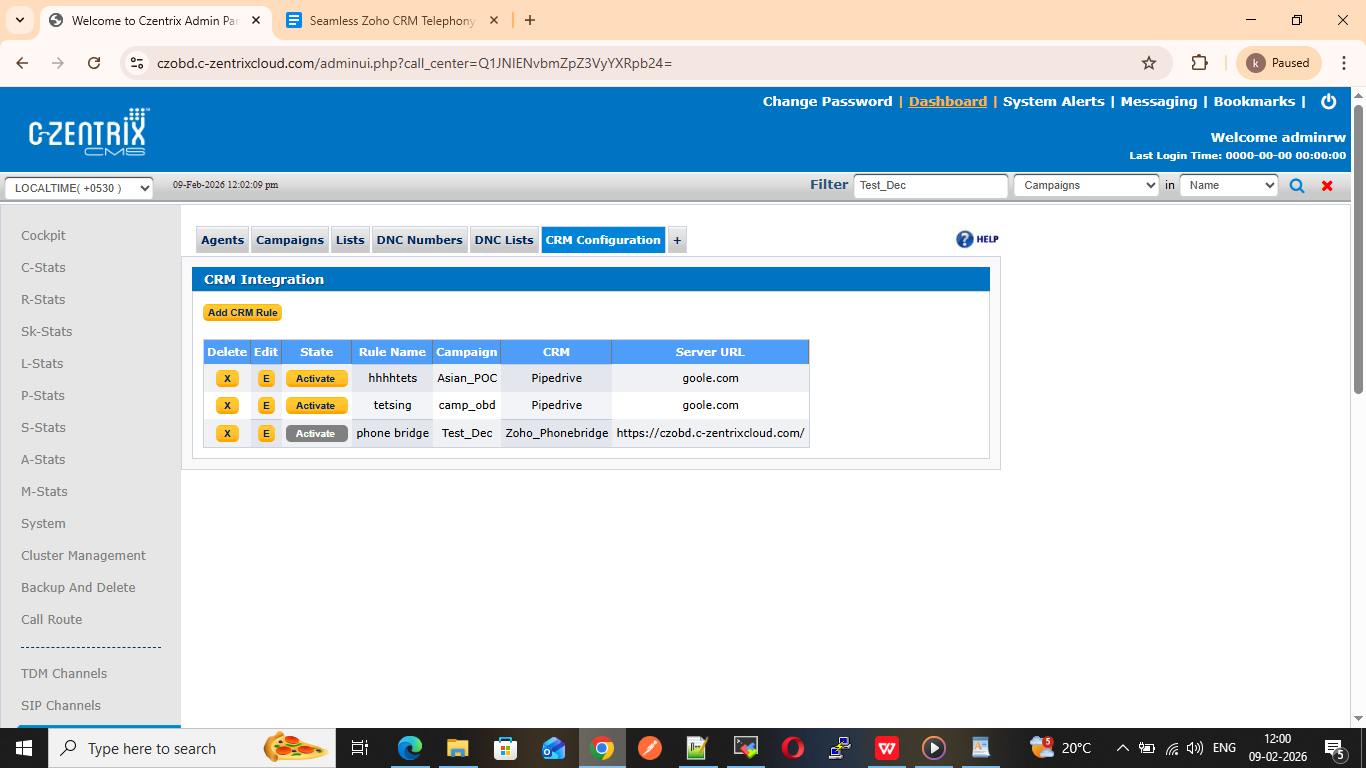
- Log in to C-Zentrix Admin Panel
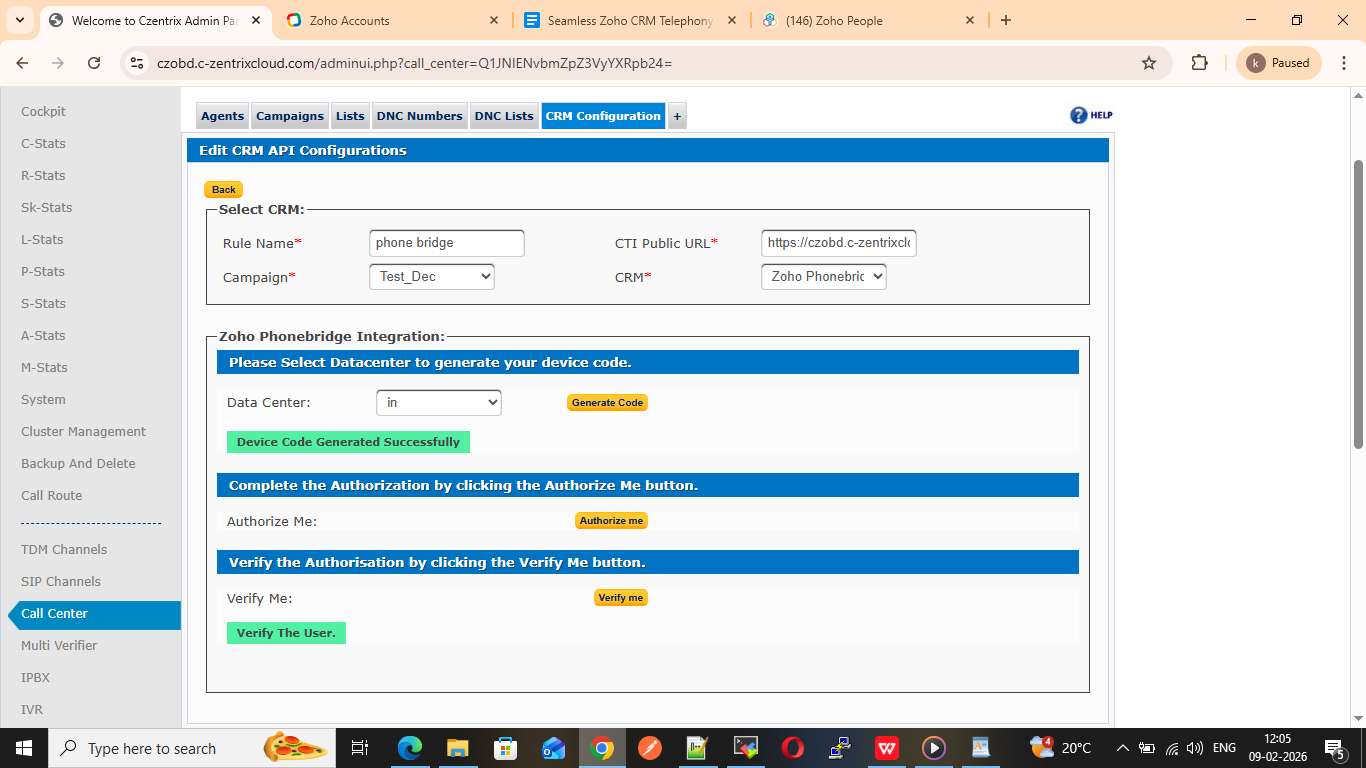
- Navigate to: Call Center → CRM Configuration
- Click Add CRM Rule
Step 9: Generate Device Token
If a CRM rule already exists:
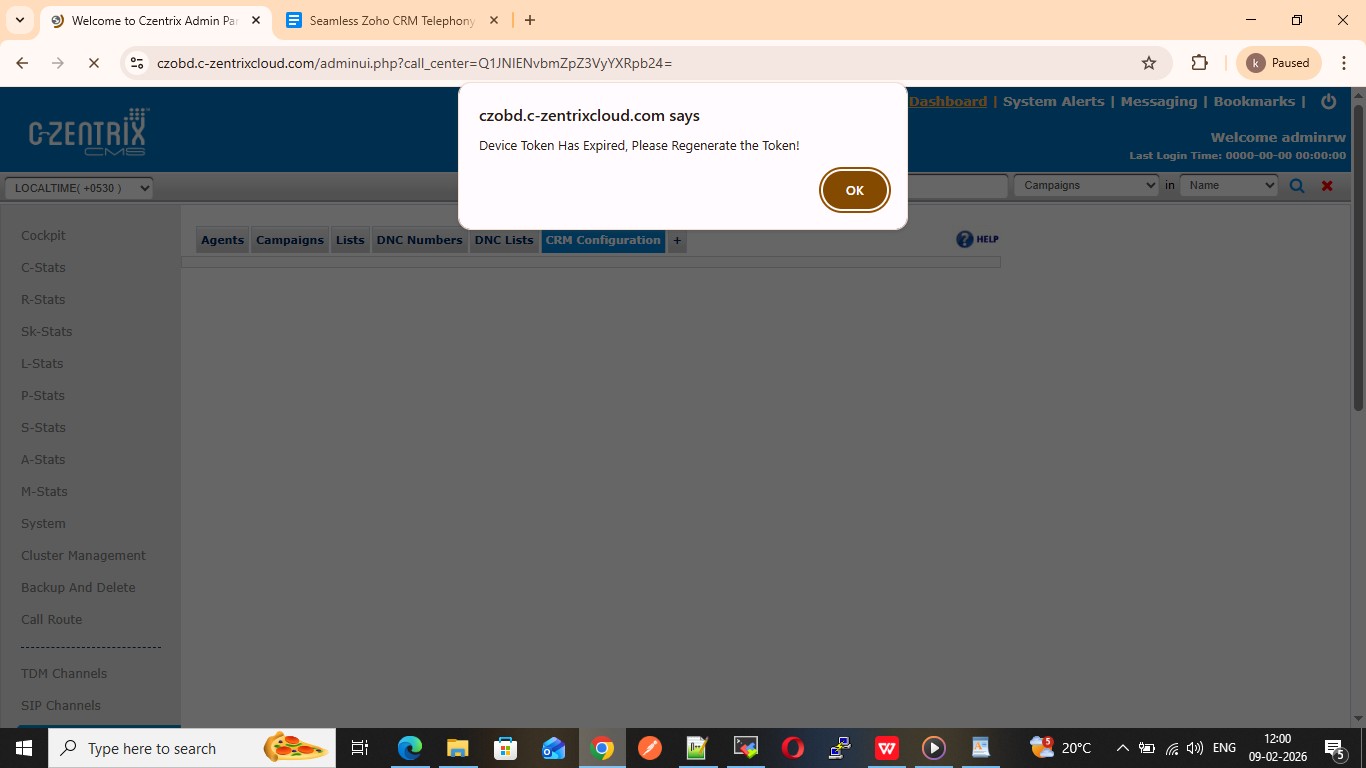
- Click Edit
- Check if the Device Token is expired
- Regenerate if required
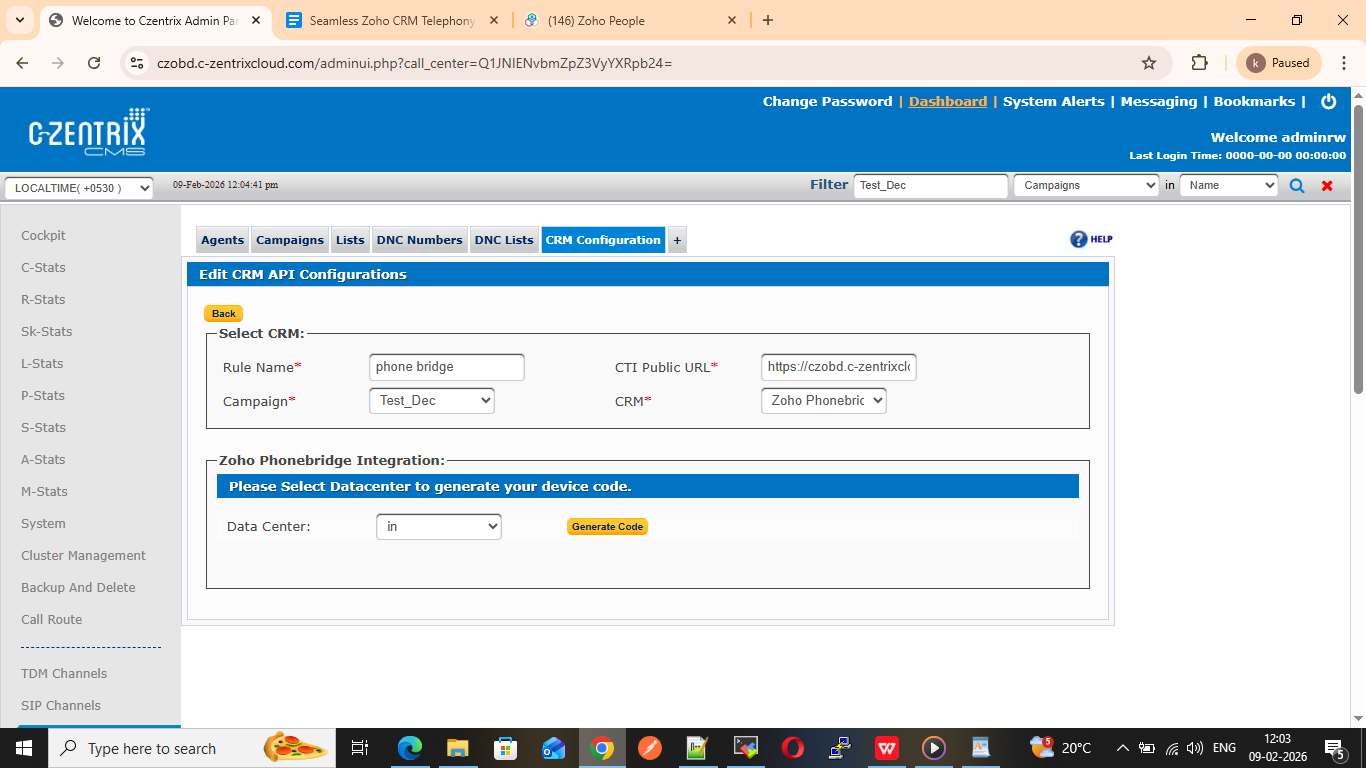
- Select CRM Data
- Choose Zoho PhoneBridge Integration
- Click Generate Code
- Device code will be generated successfully
Step 10: Authorize Zoho Account
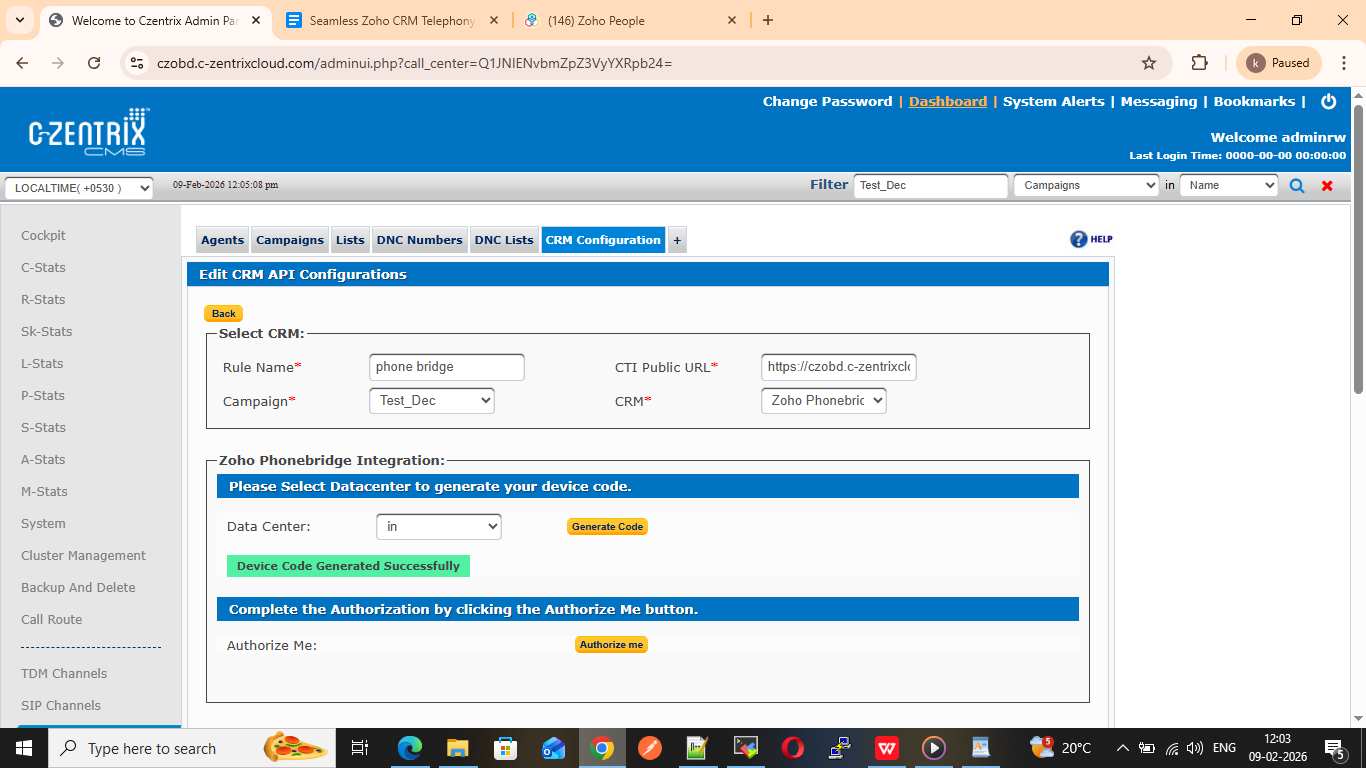
- Click Authorize Me in C-Zentrix Admin panel
- We will be redirected to Zoho Accounts
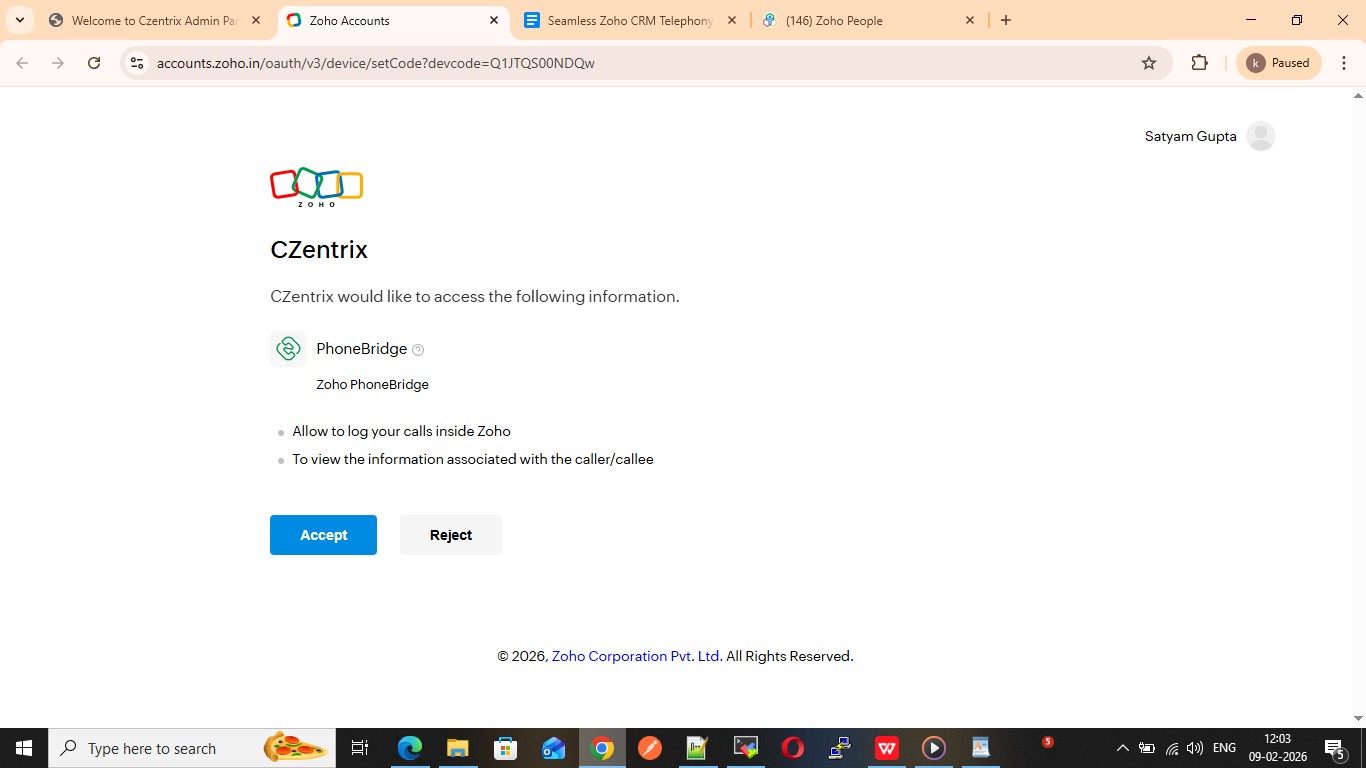
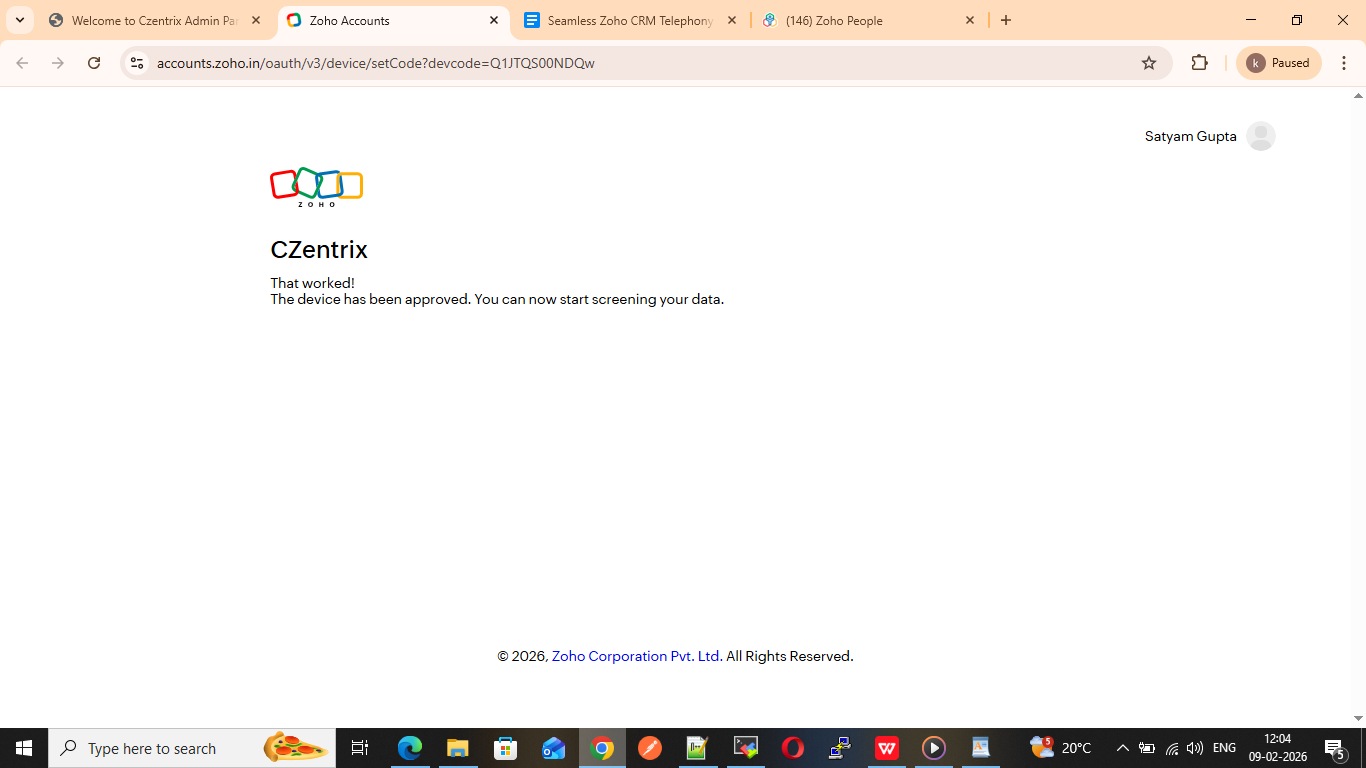
- Click Accept to authorize the application
Go to the zoho portal(www.accounts.zoho.in) and click on Accept button
Step 11: Verify Integration
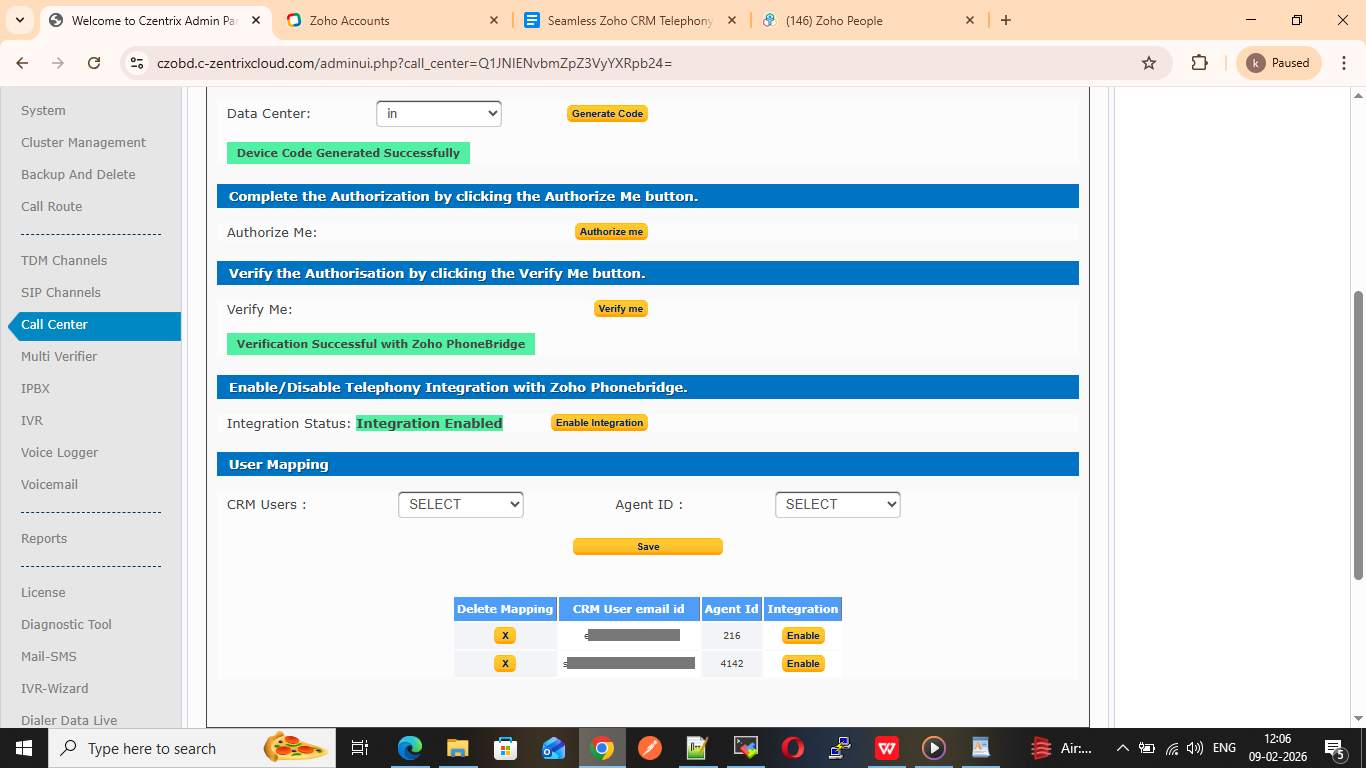
- Click Verify Me in C-Zentrix Admin Panel
- If the correct agent is mapped:
- Status will show Verification Successful
- Integration status becomes Enabled
Step 12: Map CRM User with Agent ID
- In User Mapping section:
- Select Zoho User
- Select corresponding Agent ID
- Click Save
Successful mapping confirms PhoneBridge activation.
Step 13: Agent Login
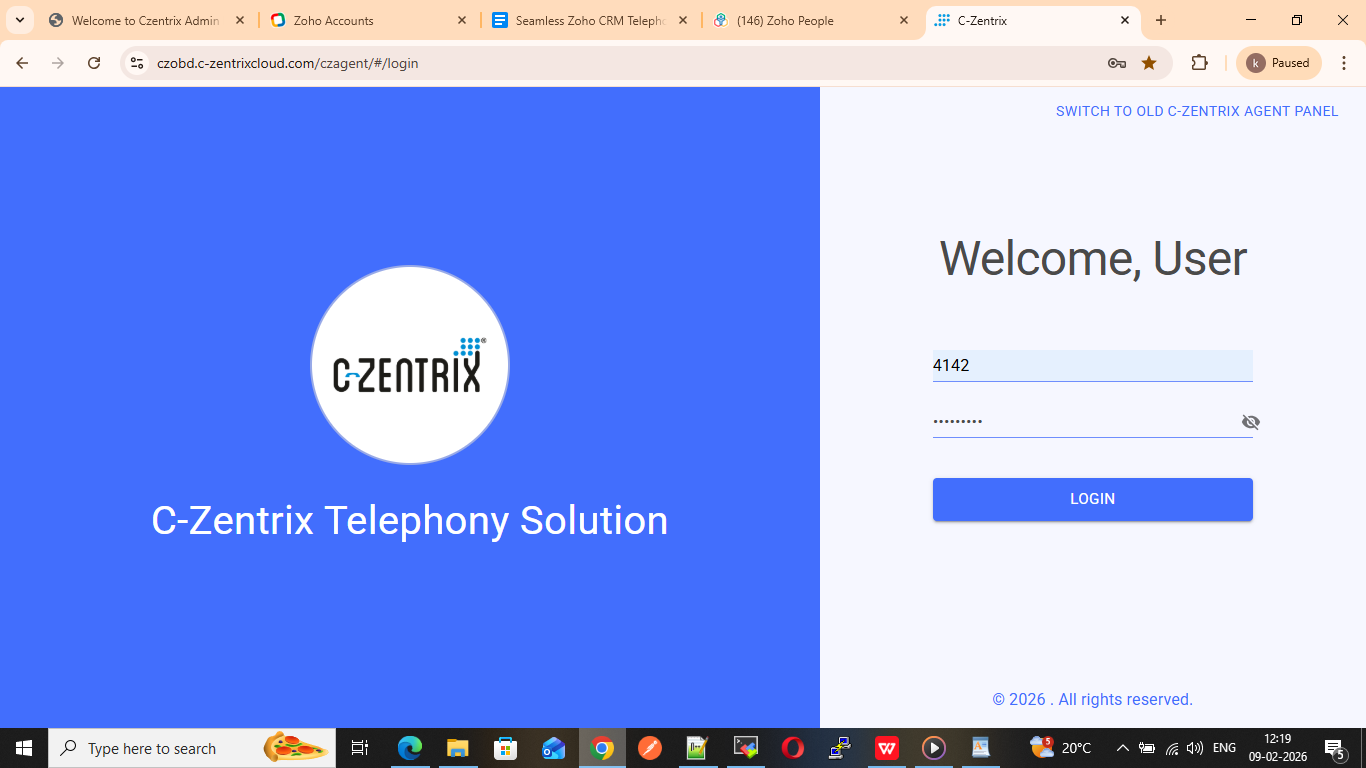
- Go to C-Zentrix Agent Dashboard
- Log in using mapped Agent credentials
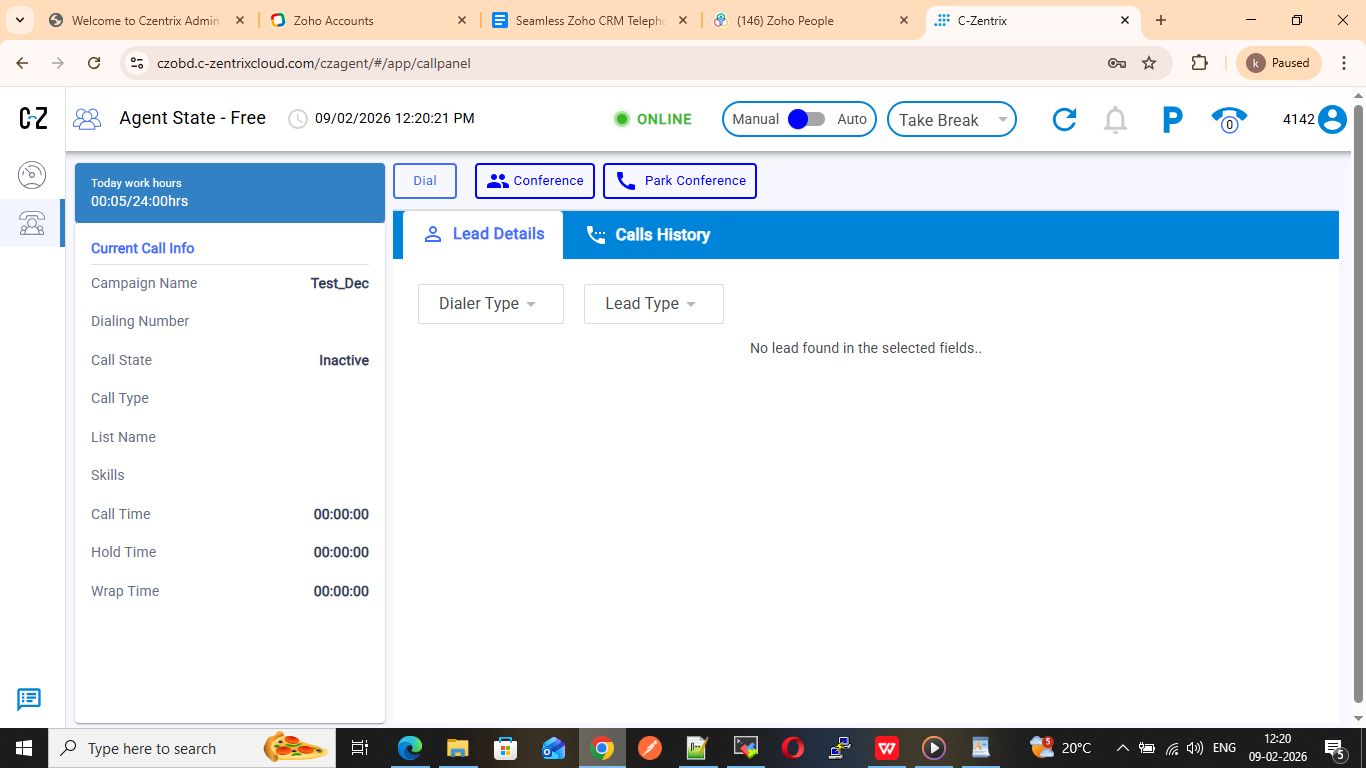
Step 14: Agent Dashboard Configuration
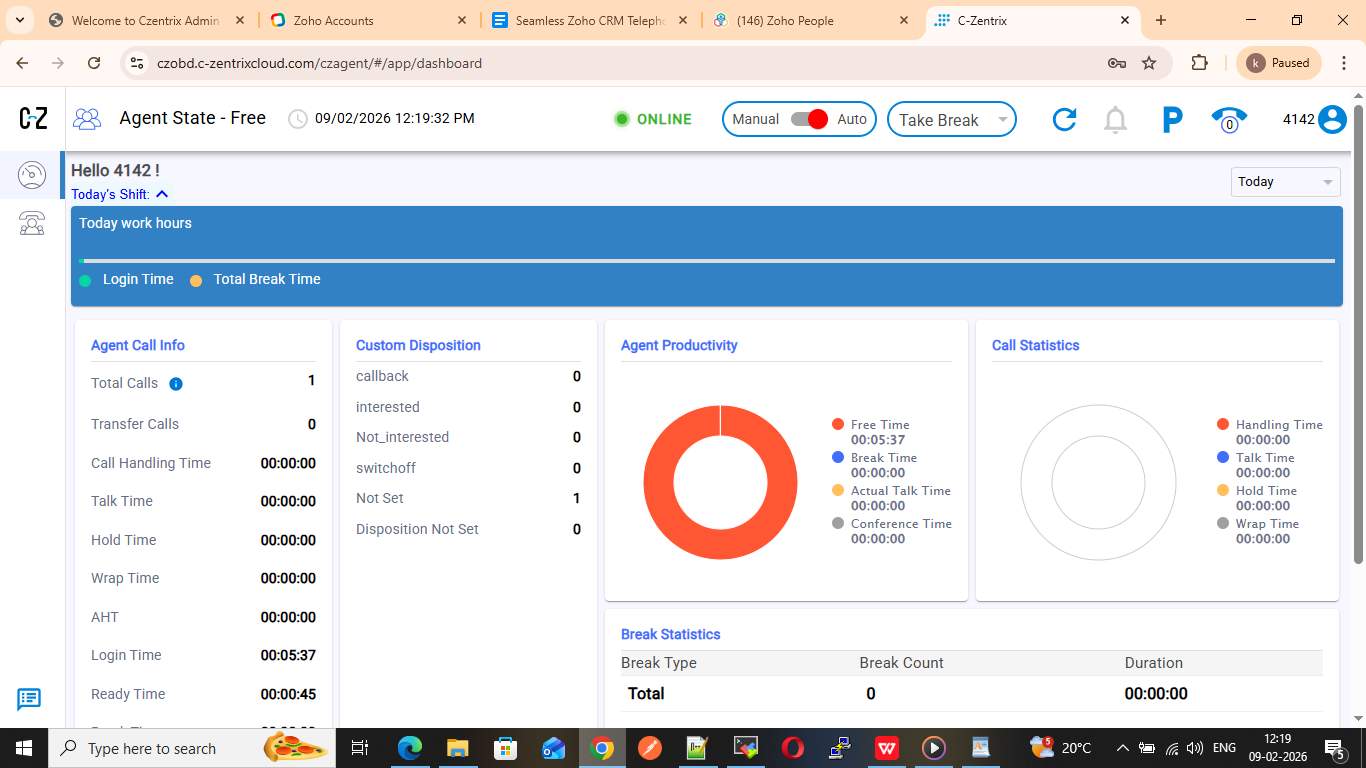
- Open Call Panel
- Disable Manual Dial (if required)
- Ensure agent status is Available
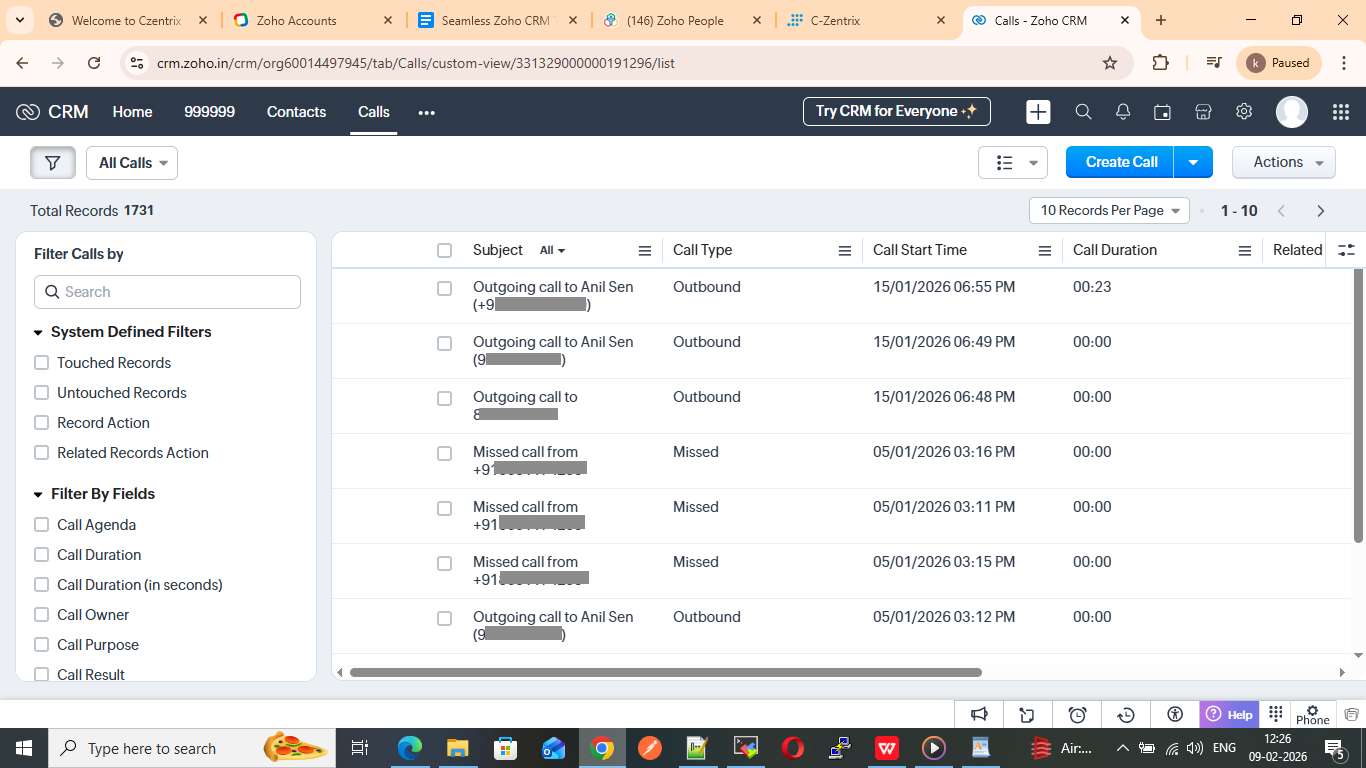
Step 15: Enable C-Zentrix in Zoho
- Go to Zoho
- Click on User Profile
- Select C-Zentrix as the telephony provider
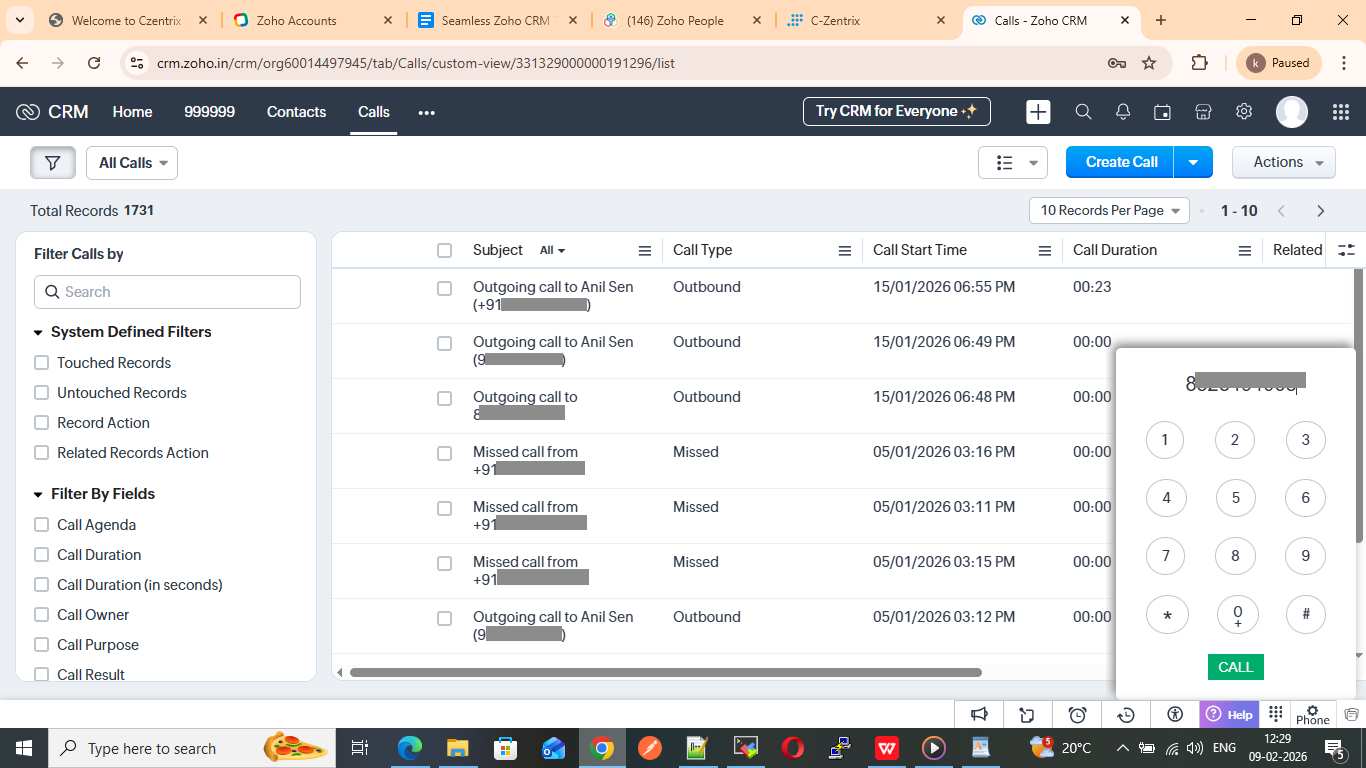
Step 16: Make a Call from Zoho
- Open any Lead / Contact
- Click the Phone icon
- Dial using the Zoho calling bar
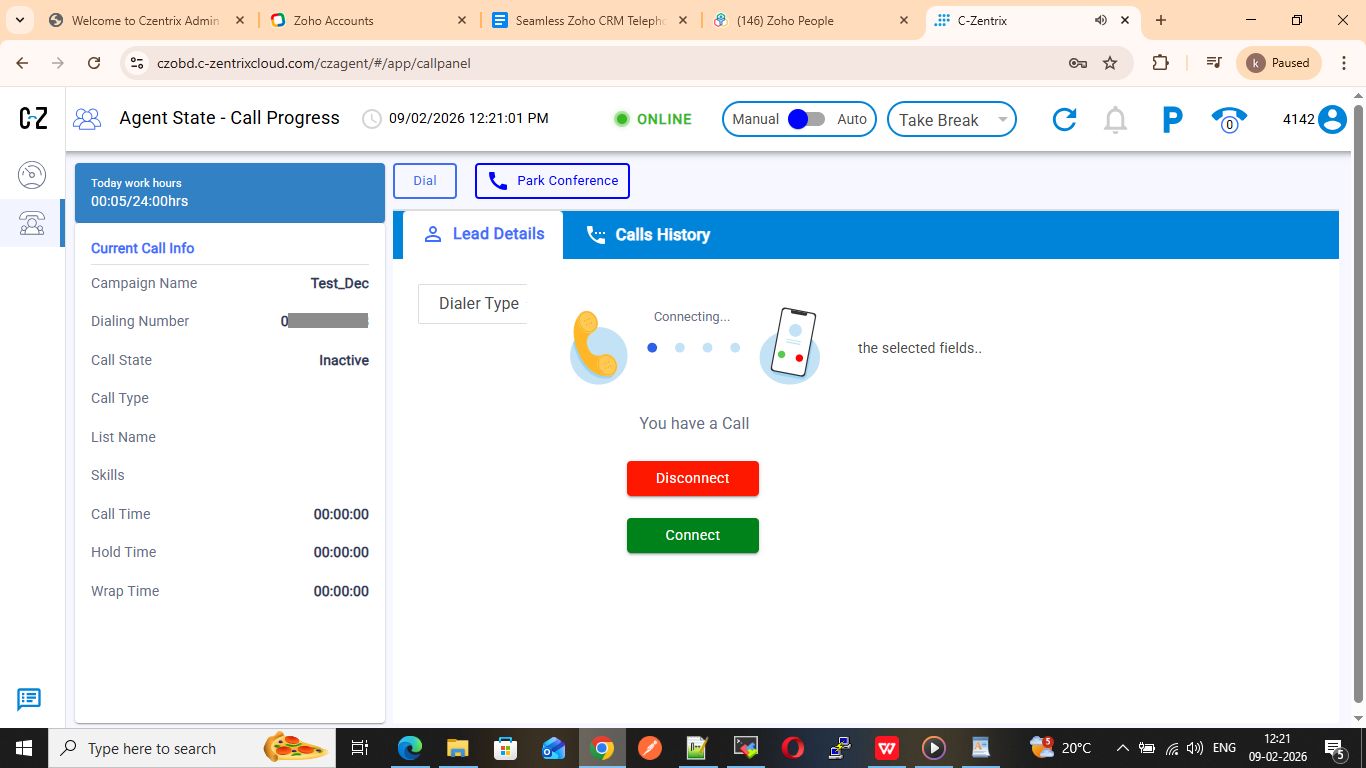
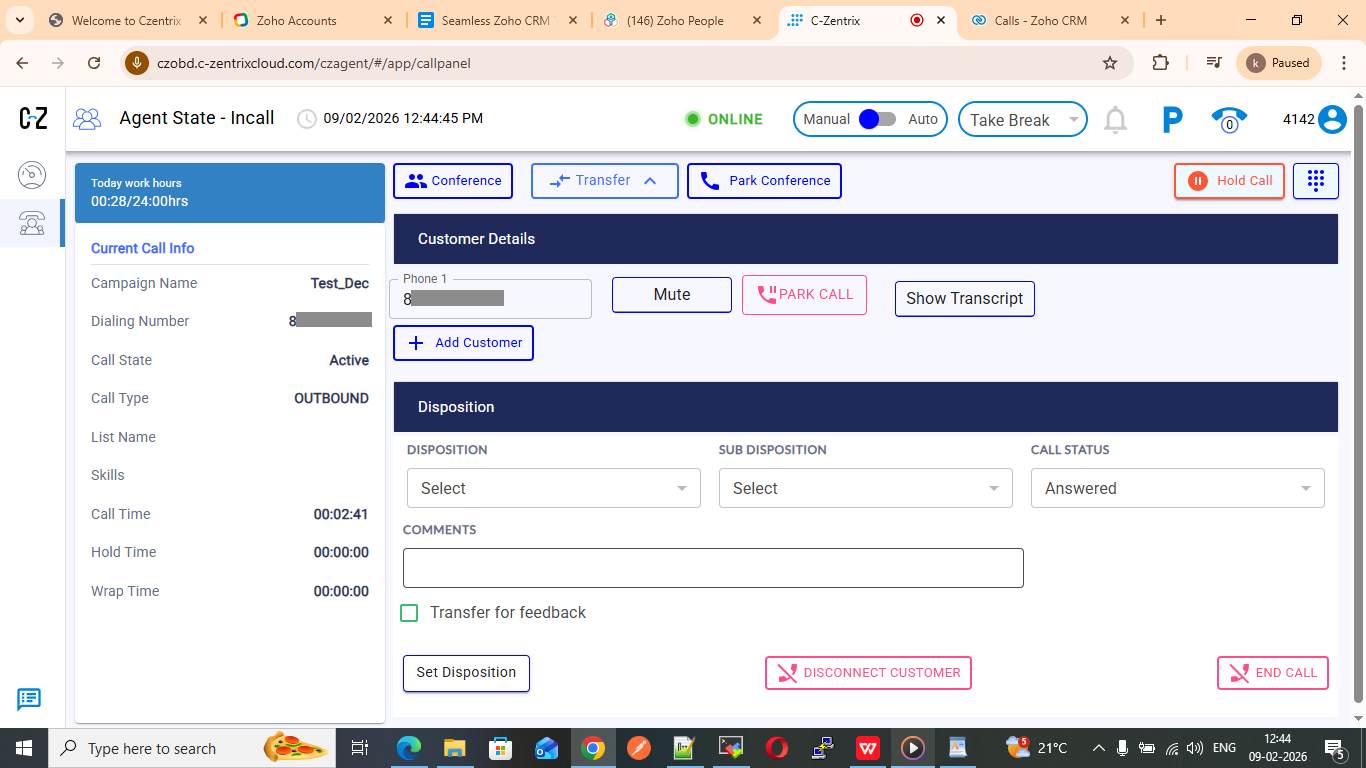
Step 17: Call Handling
- Agent receives call in C-Zentrix Admin Panel
- Agent clicks Connect
- Call details displayed:
- Call Type (Inbound / Outbound)
- Call State
- Dialed Number
- Wrap Time
Step 18: End Call & Disposition
- Click End Call from Agent panel
- Enter Call Disposition and Description in Zoho
- Click Done
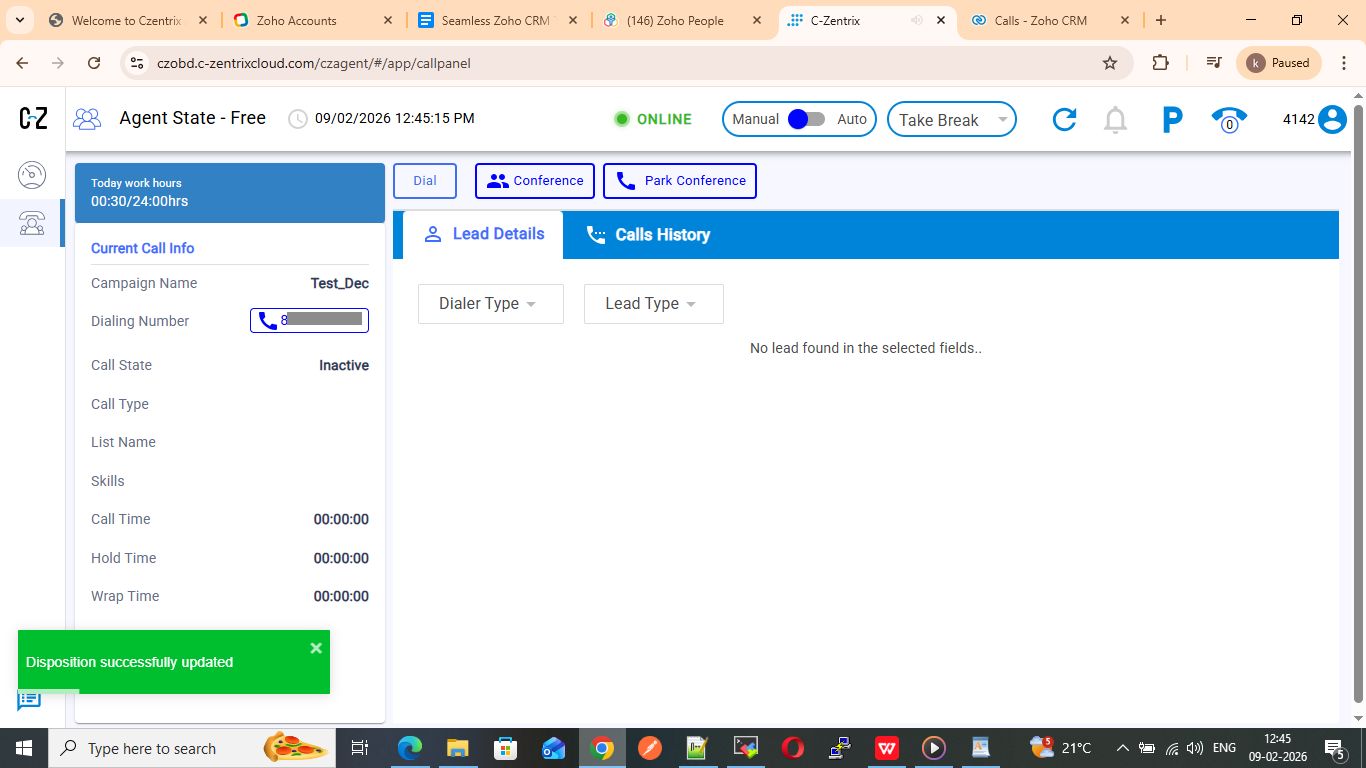
In ZOHO page write the Call Disposition and its Description and click on Done
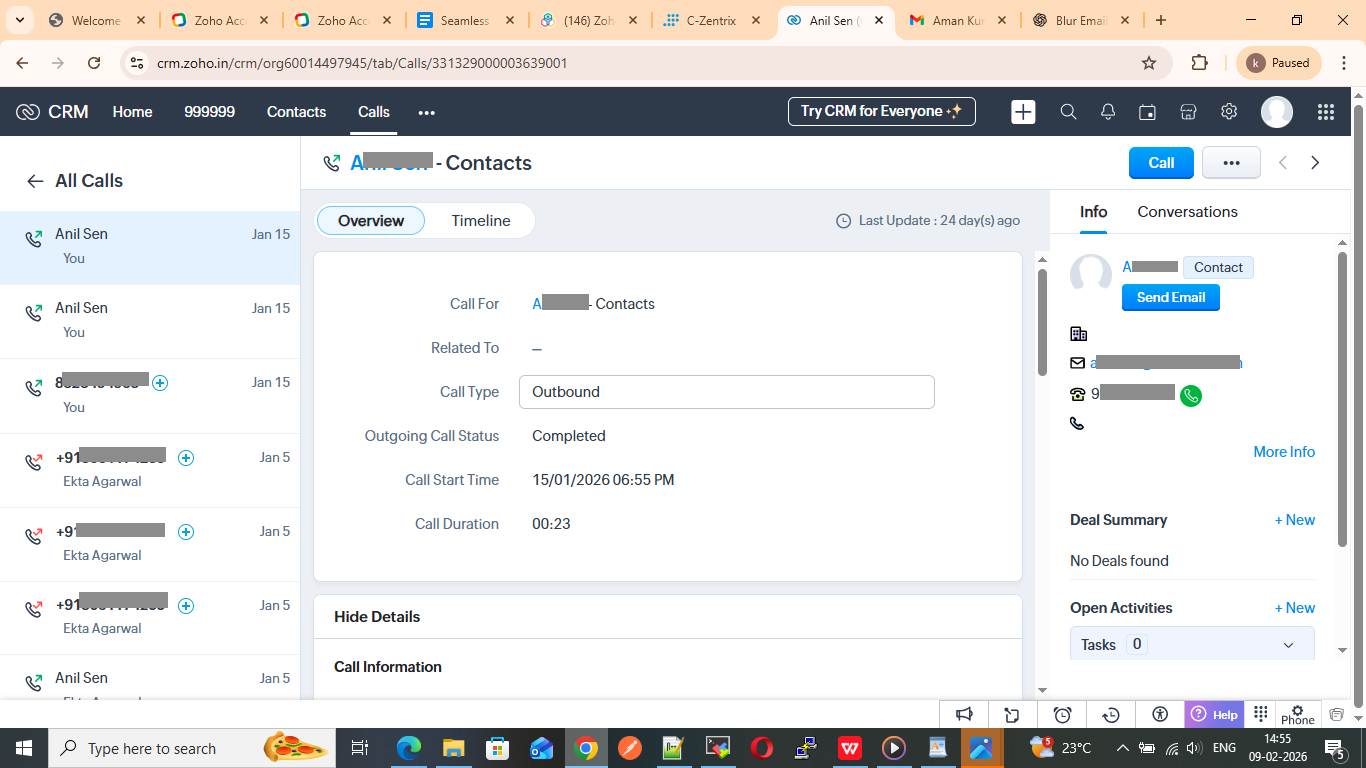
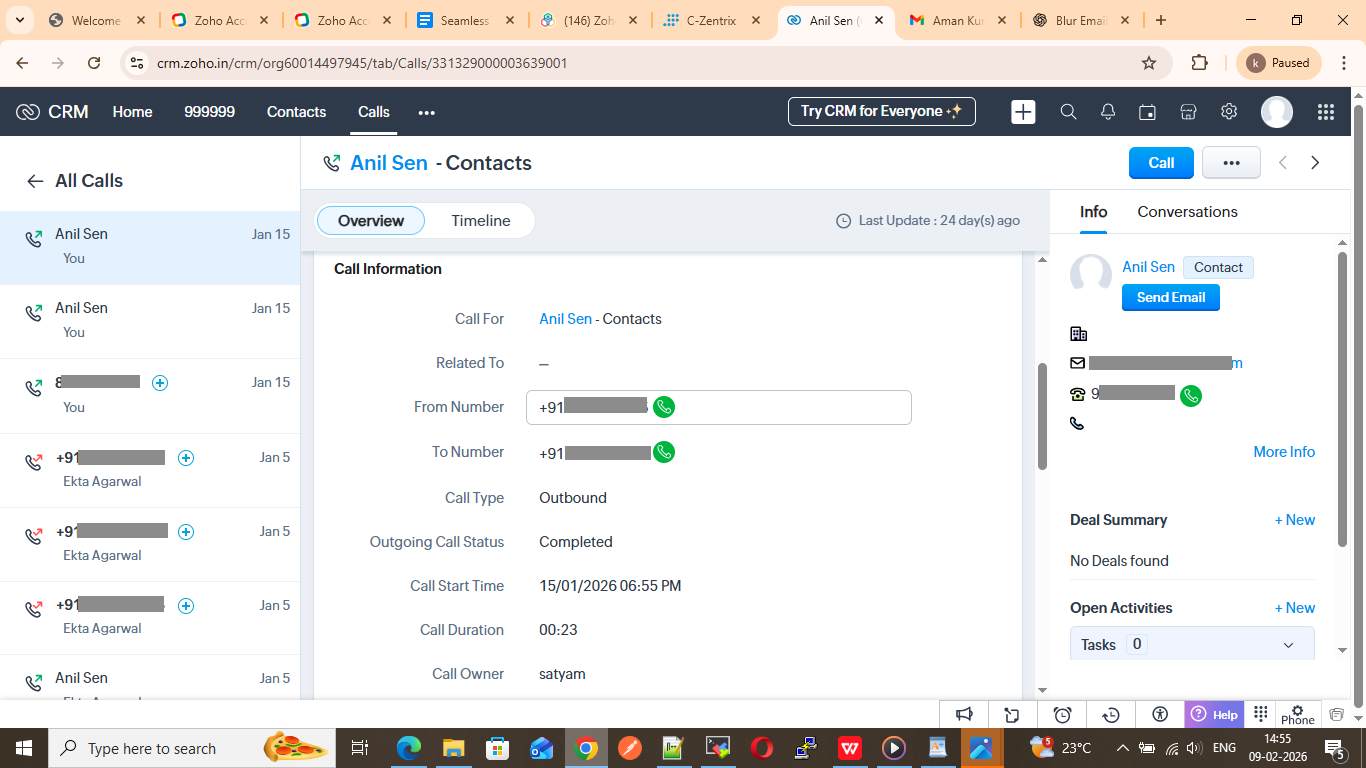
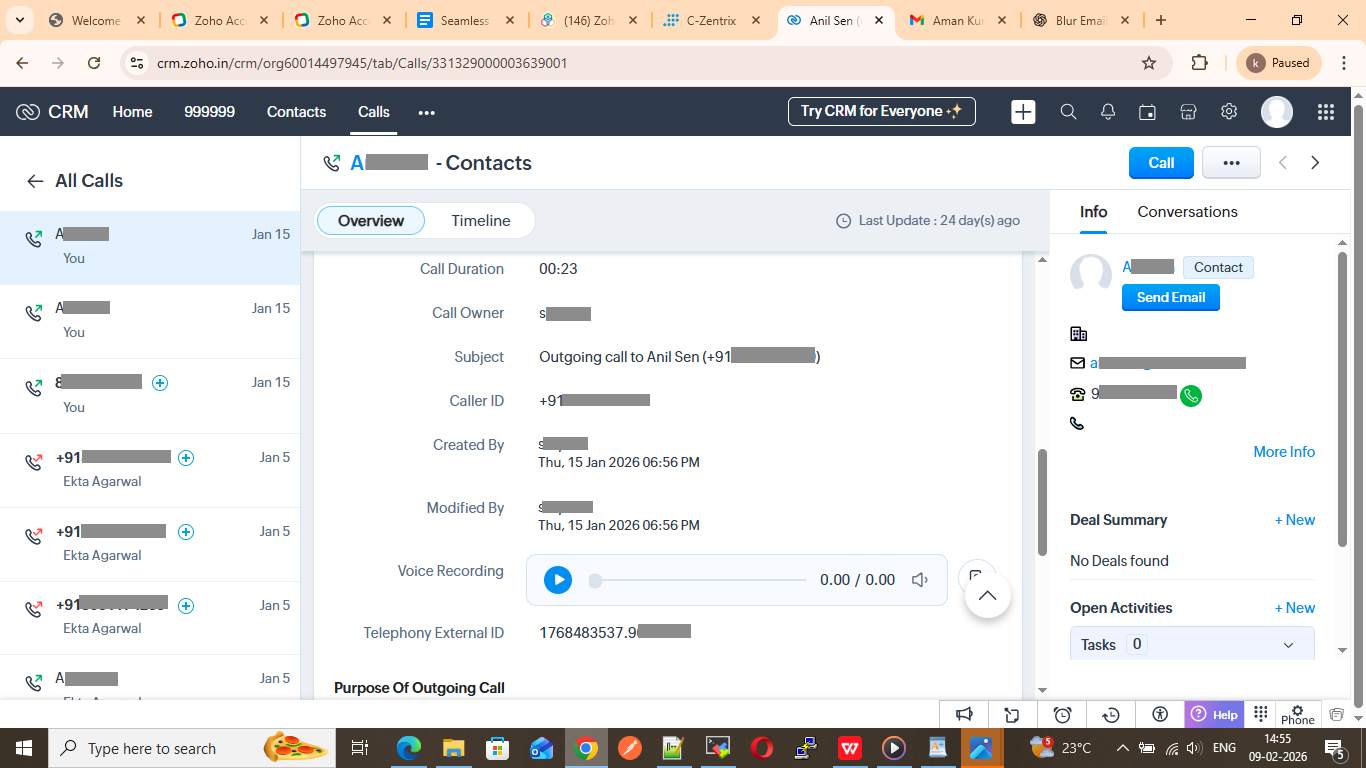
Step 19: Verify Call Logs
- Refresh Zoho
- Navigate to Calls
- Verify:
- Call type
- Duration
- Recording
- Disposition details
- Search for the required CRM user
- Select the user and click Proceed
Once completed, the user will appear in the User Mapping list, confirming successful configuration
Step 20: Confirm Successful Mapping
When a user appears in the mapping list:
- The PhoneBridge configuration for that user is complete
- The user can now make and receive calls directly from Zoho using C-Zentrix
This confirms that the telephony bridge is active and functional
Troubleshooting: “PhoneBridge is Not Enabled”
If you see the message:
“PhoneBridge is not enabled in Zoho”
It means:
- Telephony is disabled for the selected campaign, or
- No telephony provider has been fully configured'
Ensure that:
- C-Zentrix is installed correctly
- Users are mapped
- Telephony is enabled at the campaign level
Designed for Sales & Support Teams
For Sales Teams
- Call prospects directly from lead and deal records
- Automatically track call history
- Spend more time selling, less time updating CRM
For Support Teams
- Instantly recognize callers
- Log every interaction automatically
- Deliver faster, more personalized support
Smart Error Handling & Visibility
If telephony is not enabled for a campaign, Zoho clearly notifies admins—ensuring configuration issues are caught early and resolved quickly. This transparency keeps your operations smooth and interruption-free
Enterprise-Ready & Scalable
The C-Zentrix - Zoho PhoneBridge integration is ideal for:
- Growing sales teams
- Multi-agent support centers
- Enterprises needing CRM-first calling workflows
As your team scales, the integration scales with you—without added complexity.
Get Started Today
Enable seamless voice communication inside Zoho and transform how your teams engage with customers.
👉 Install CZentrix for Zoho PhoneBridge
👉 Empower your teams with smarter calling
👉 Never lose a conversation again


Comments
Post a Comment